> ## Documentation Index
> Fetch the complete documentation index at: https://docs.aicamp.so/llms.txt
> Use this file to discover all available pages before exploring further.
# Share Prompt Templates & Folders | AICamp
> Share your prompt library by folder with specific users, groups or the whole workspace. Control view/edit access, streamline prompt reuse, and enforce best practices.
AICamp lets you share your Prompt Library folders with specific people, groups, or your entire workspace.\
This makes it easy to distribute reusable prompts across teams and encourage collective knowledge-building.
## How to Share a Prompt Library Folder
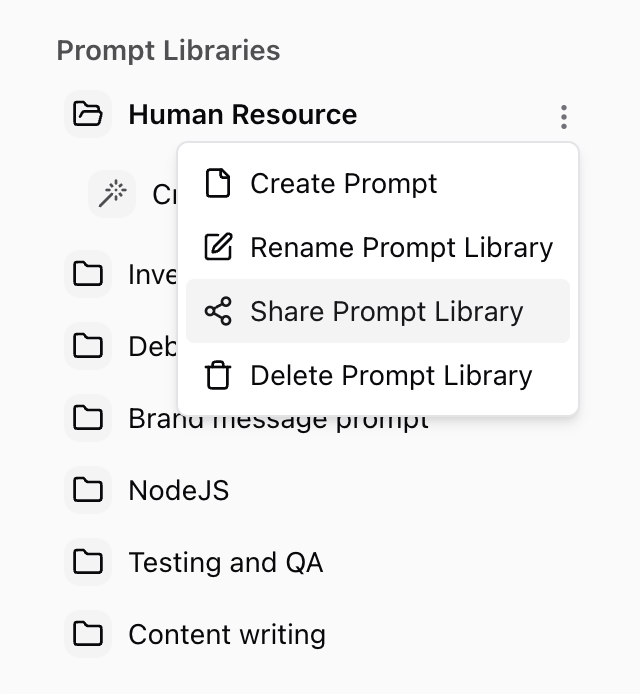
1. Go to the **Prompt Library** in the left sidebar
2. Hover over the folder you want to share
3. Click the **three-dot menu (⋮)** next to the folder
4. Select **“Share Prompt Library”**
 ## Share Settings Dialog
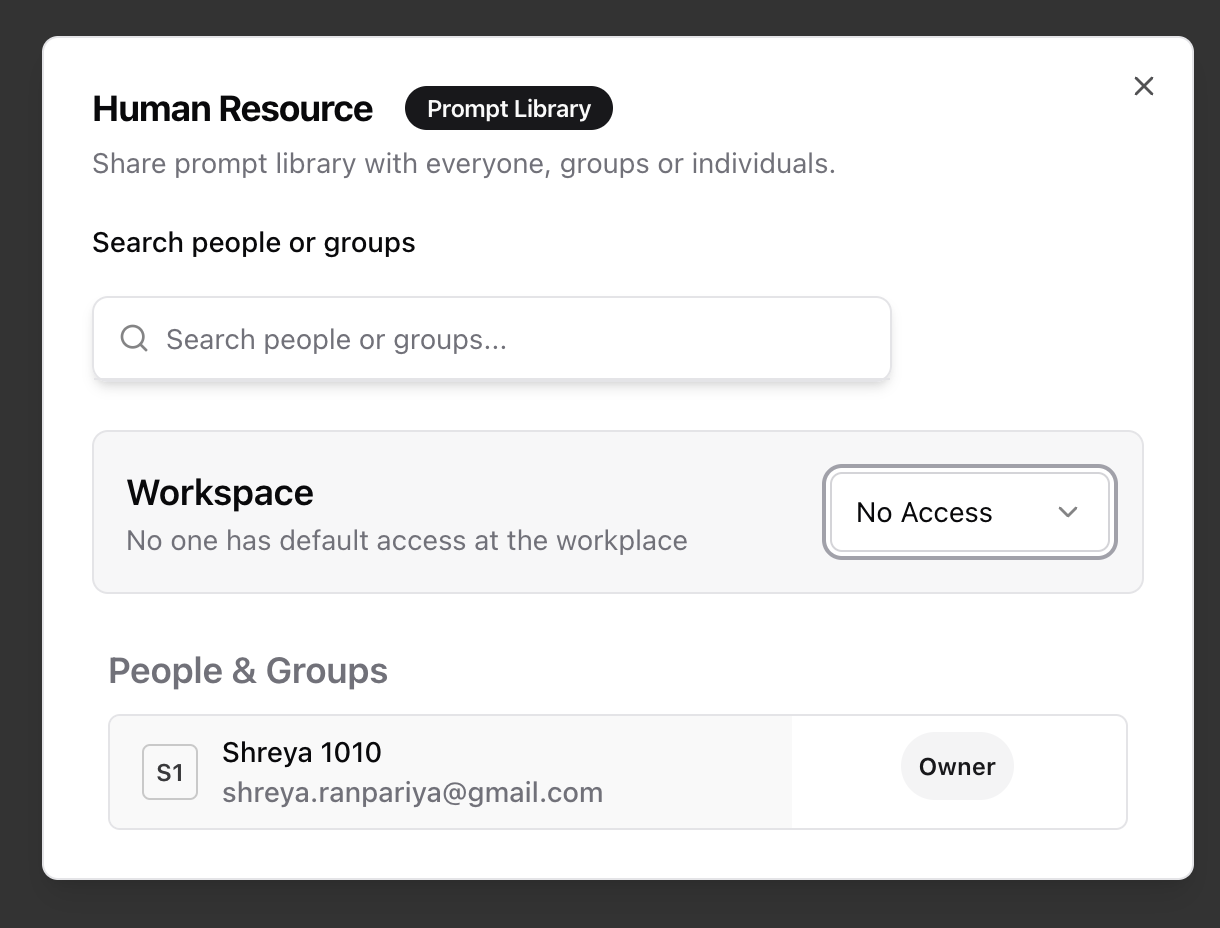
When you click **“Share Prompt Library”**, a pop-up will appear where you can manage access:
* **Search People or Groups**\
Start typing a teammate’s name or a group (like “Marketing”) to share directly with them.
* **Workspace Access**\
Use the dropdown to allow or restrict access at the **workspace level**.\
Options include:
* **No Access**
* **View Only**
* *(Additional levels if configured)*
* **People & Groups List**\
You’ll see who already has access and their roles (e.g., “Owner”).
## Share Settings Dialog
When you click **“Share Prompt Library”**, a pop-up will appear where you can manage access:
* **Search People or Groups**\
Start typing a teammate’s name or a group (like “Marketing”) to share directly with them.
* **Workspace Access**\
Use the dropdown to allow or restrict access at the **workspace level**.\
Options include:
* **No Access**
* **View Only**
* *(Additional levels if configured)*
* **People & Groups List**\
You’ll see who already has access and their roles (e.g., “Owner”).
 ## Things to Know
* Shared folders remain editable only by the **owner** unless editing is explicitly allowed.
* Anyone with access can **view and use** the prompts inside the shared folder.
* You can **change or remove access** at any time by opening the same share dialog.
## Best Practices
* Use **group sharing** (e.g. Engineering, Design) for repeatable workflows
* Share with the **workspace** for commonly used prompts (like brand voice or templates or communication stratagy)
* Add **clear titles and descriptions** to make shared prompts easy to understand
## Things to Know
* Shared folders remain editable only by the **owner** unless editing is explicitly allowed.
* Anyone with access can **view and use** the prompts inside the shared folder.
* You can **change or remove access** at any time by opening the same share dialog.
## Best Practices
* Use **group sharing** (e.g. Engineering, Design) for repeatable workflows
* Share with the **workspace** for commonly used prompts (like brand voice or templates or communication stratagy)
* Add **clear titles and descriptions** to make shared prompts easy to understand