> ## Documentation Index
> Fetch the complete documentation index at: https://docs.aicamp.so/llms.txt
> Use this file to discover all available pages before exploring further.
# How to Create & Organize Prompts | AICamp
> Learn how to build, categorize, and manage prompts in AICamp. Organize using folders, tags, hierarchy, and structure to boost prompt reuse and team efficiency.
The Prompt Library in AICamp lets you create, save, and organize reusable prompts for yourself or your team.\
Everything begins from the **Prompt Library section in the left sidebar** of the platform.
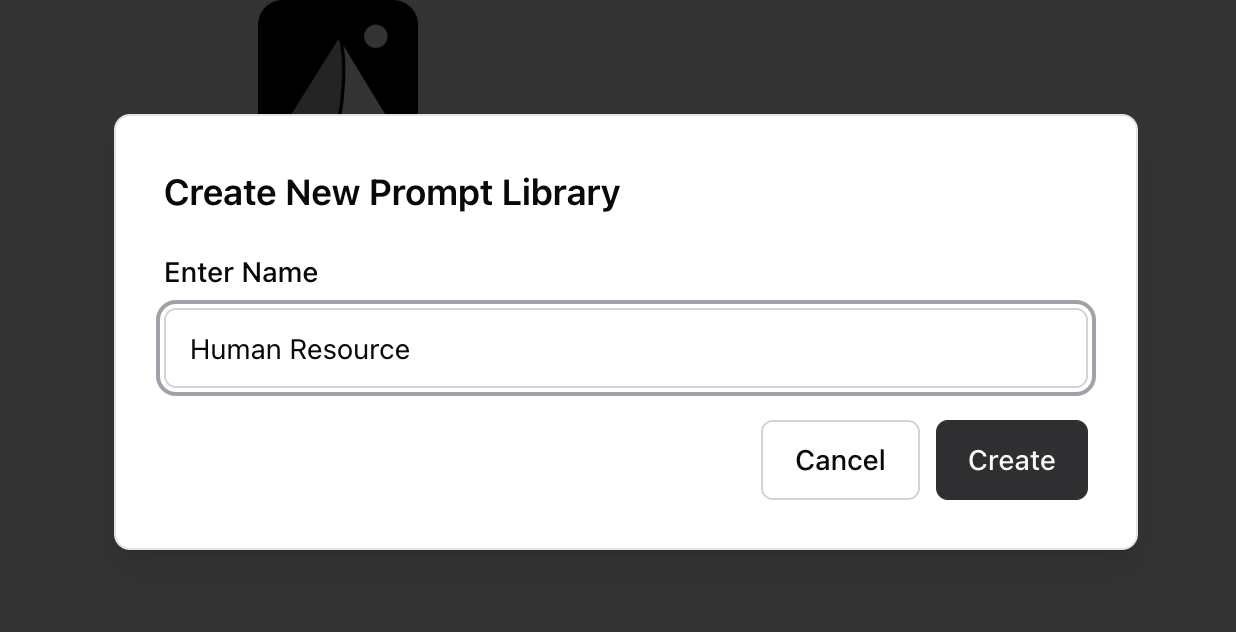
## Step 1: Create a Folder
Folders help you organize prompts by use case, department, or project.
To create a folder:
1. Go to **Prompt Library** in the left sidebar
2. Click the **“+” (Create Folder)** button
3. Enter a **Folder Name** (e.g. “Marketing Templates”)
4. Choose who can access it\
\
Your new folder will now appear in the sidebar and the main library view.
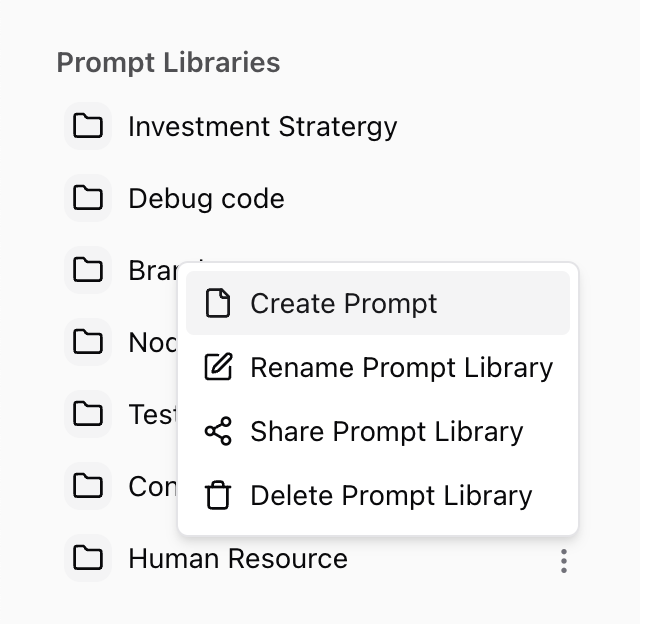
 ## Step 2: Create a Prompt Inside a Folder
1. Navigate to the folder you just created
2. Click the **three-dot menu (⋮)** next to the folder name
3. Select **“Create Prompt”**
## Step 2: Create a Prompt Inside a Folder
1. Navigate to the folder you just created
2. Click the **three-dot menu (⋮)** next to the folder name
3. Select **“Create Prompt”**
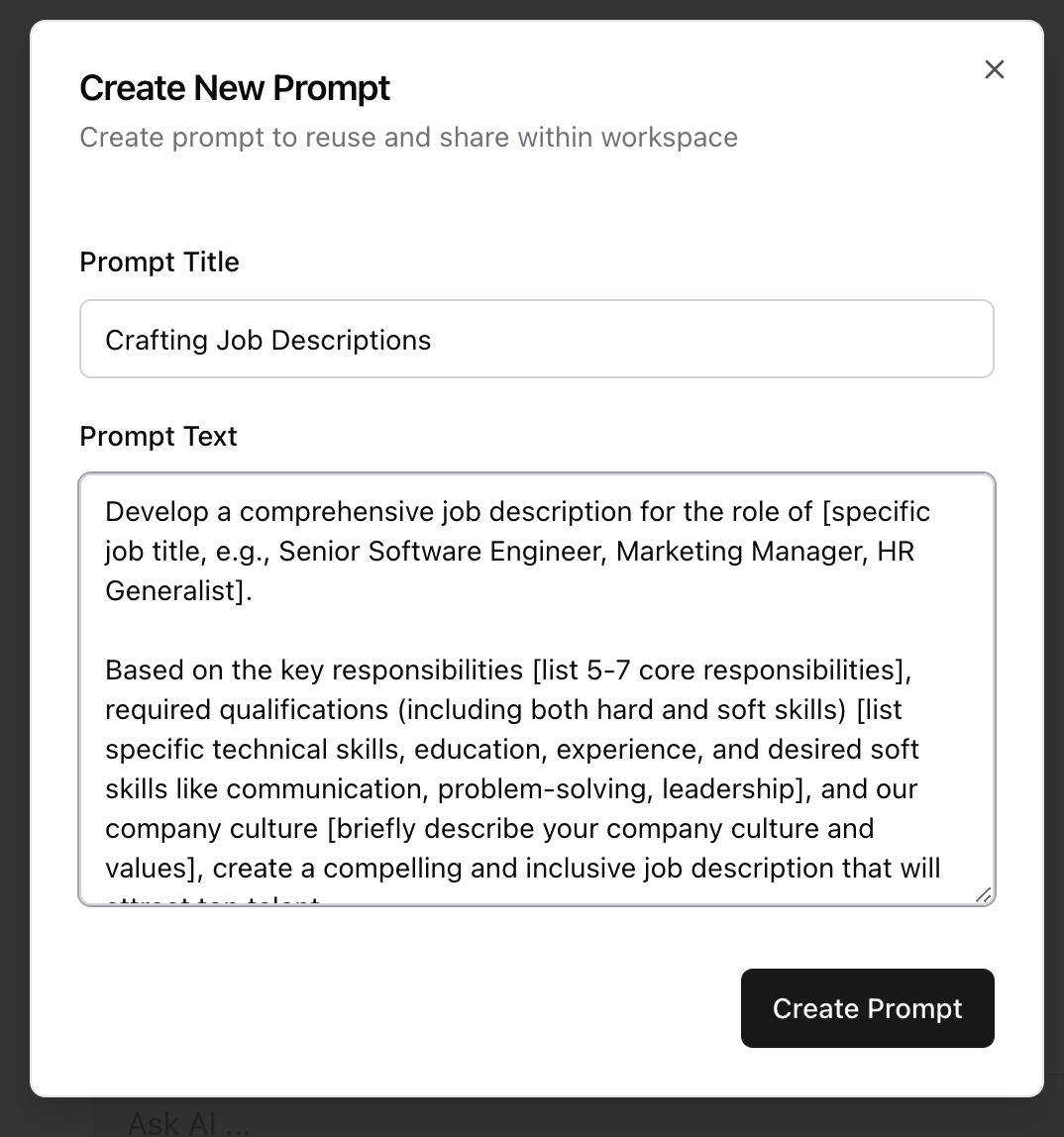
 Fill out the following fields:
* **Title** — A clear name (e.g. “Welcome Email Generator”)
* **Text** — The actual prompt instructions (this is what the model will use)
Click **Save**, and the prompt will be added to that folder.
Fill out the following fields:
* **Title** — A clear name (e.g. “Welcome Email Generator”)
* **Text** — The actual prompt instructions (this is what the model will use)
Click **Save**, and the prompt will be added to that folder.
 ## How to View a Prompt
To quickly view the full content of a prompt:
1. Go to the **Prompt Library**
2. Hover over the **prompt name** in any folder
3. A preview will appear, showing the full prompt body and description
This makes it easy to scan prompts without opening each one.
## How to View a Prompt
To quickly view the full content of a prompt:
1. Go to the **Prompt Library**
2. Hover over the **prompt name** in any folder
3. A preview will appear, showing the full prompt body and description
This makes it easy to scan prompts without opening each one.
 ## Edit or Delete a Prompt
* To **edit**, Click the **three-dot menu (⋮)** next to the folder name \
click **Edit**
* To **delete**, use the **three-dot menu (⋮)** next to the prompt in the folder view
## Tips for Staying Organized
* Use **clear, descriptive titles**
* Add a description to explain when/how to use the prompt
* Group prompts by function, department, or client
* Avoid duplicates — check before creating similar prompts
## Edit or Delete a Prompt
* To **edit**, Click the **three-dot menu (⋮)** next to the folder name \
click **Edit**
* To **delete**, use the **three-dot menu (⋮)** next to the prompt in the folder view
## Tips for Staying Organized
* Use **clear, descriptive titles**
* Add a description to explain when/how to use the prompt
* Group prompts by function, department, or client
* Avoid duplicates — check before creating similar prompts