> ## Documentation Index
> Fetch the complete documentation index at: https://docs.aicamp.so/llms.txt
> Use this file to discover all available pages before exploring further.
# Deploy & Share AI Agents Across Team | AICamp
> Share your AI agents with specific users or the whole company. Control “view” vs “edit” permissions, make agents discoverable, and follow deployment guidelines.
After creating an AI Agent in AICamp, you can choose who can access and use it.\
You can share Agents with individuals, specific groups, or make them available across the entire company.
This allows your team to collaborate on custom workflows — or deploy standardized Agents for broader use.
 ***
## 🔄 How to Share with People or Groups
1. Open the Agent you want to share
2. Go to the [**Visibility**](/agent/create-ai-agent) tab (Step 2 in the setup flow)
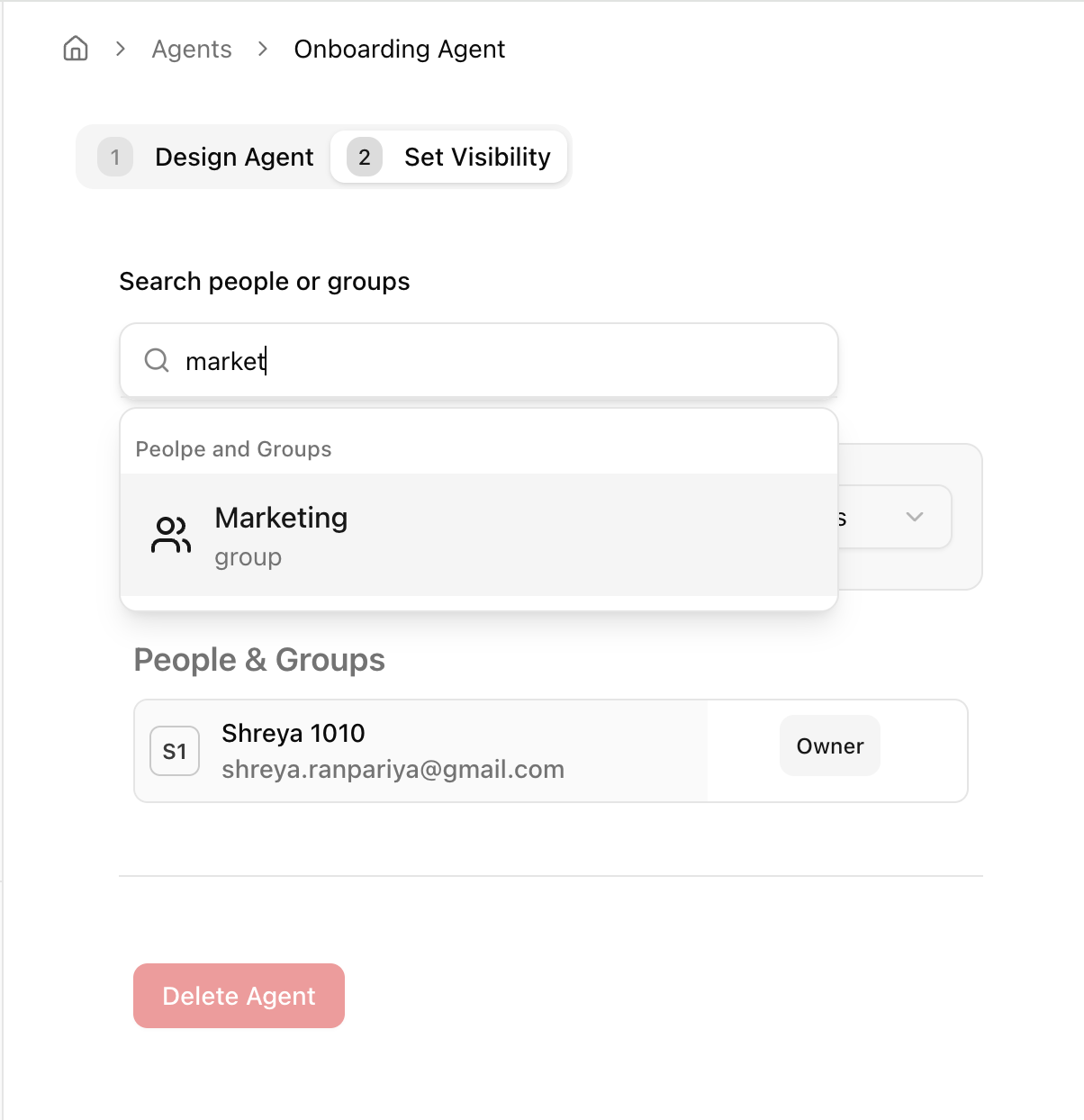
3. Under **Search people or groups**, type the name or email
4. Add individuals or groups and choose one of the following access levels:
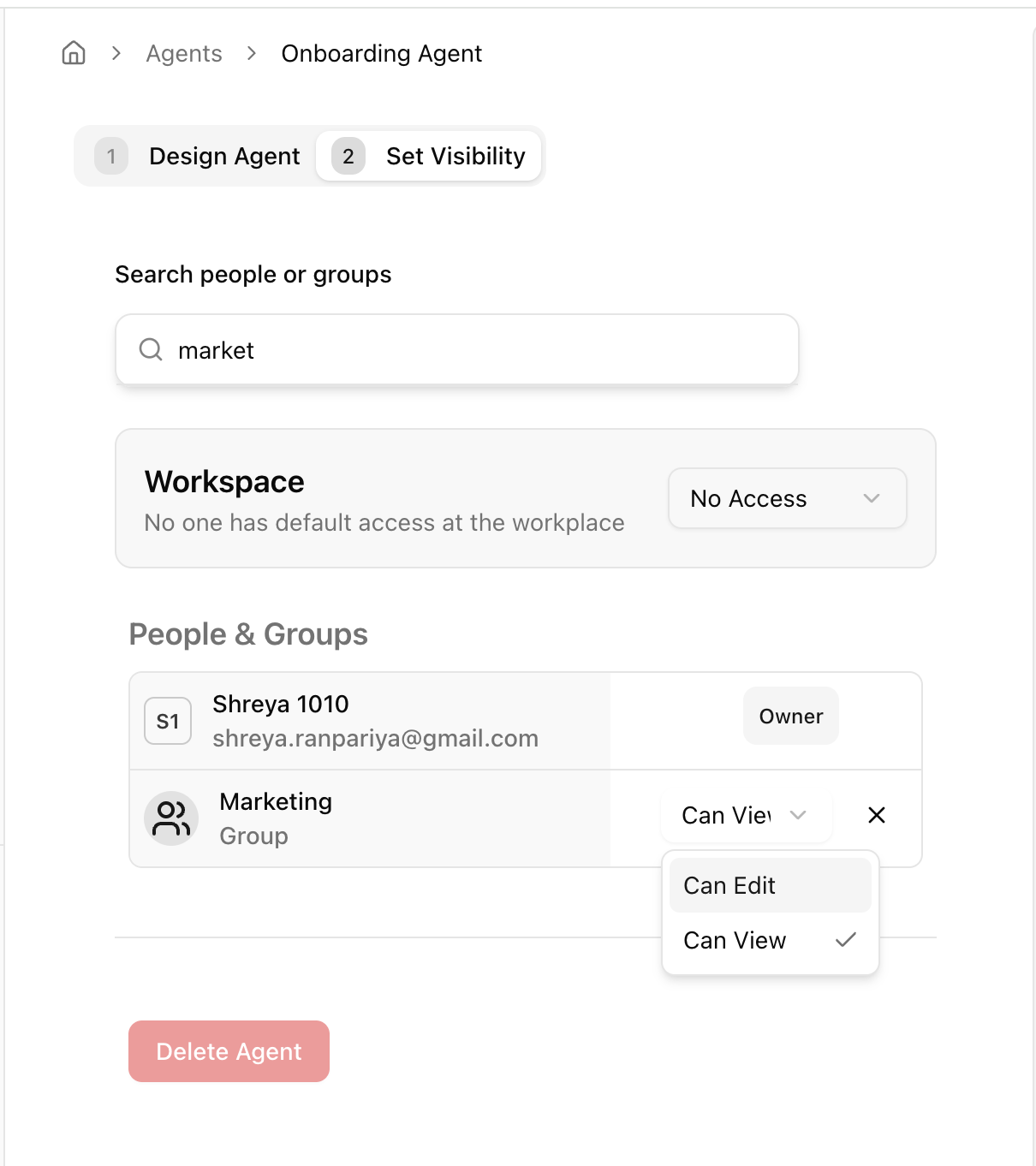
* **Can View** – Can use the Agent in chat
* **Can Edit** – Can edit the Agent's persona, files, or behavior
You can remove access or change permissions anytime.
***
## 🔄 How to Share with People or Groups
1. Open the Agent you want to share
2. Go to the [**Visibility**](/agent/create-ai-agent) tab (Step 2 in the setup flow)
3. Under **Search people or groups**, type the name or email
4. Add individuals or groups and choose one of the following access levels:
* **Can View** – Can use the Agent in chat
* **Can Edit** – Can edit the Agent's persona, files, or behavior
You can remove access or change permissions anytime.
 ***
## 🌐 How to Deploy Across the Company
You can make the Agent discoverable to the entire workspace:
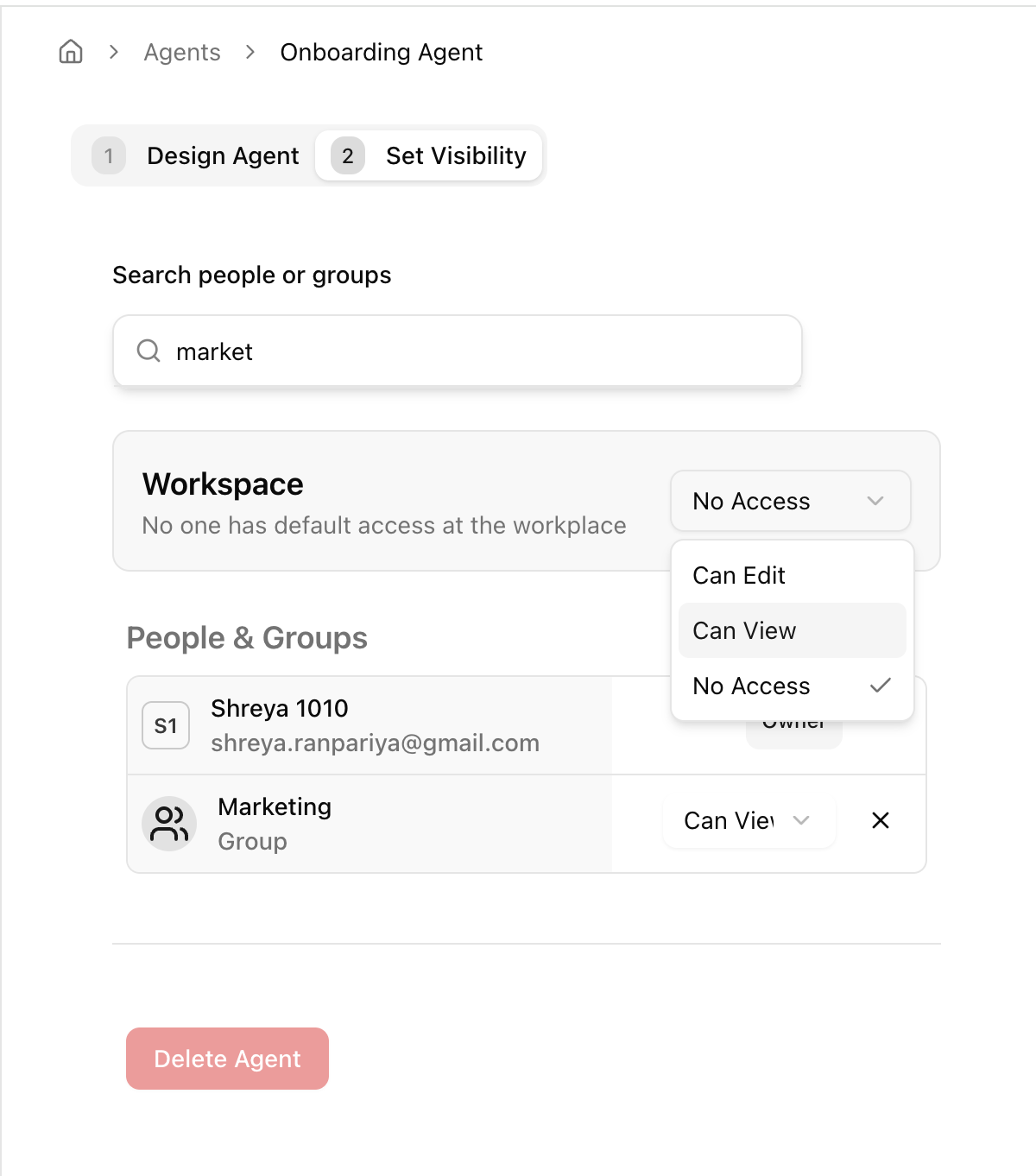
1. In the **Visibility** tab, go to the **Workspace** section
2. Use the dropdown to select:
* **No Access** – Agent is not visible to workspace by default
* **Can View** – Everyone in the company can use this Agent
* **Can Edit** – Everyone can edit (not recommended unless intentional)
***
## 🌐 How to Deploy Across the Company
You can make the Agent discoverable to the entire workspace:
1. In the **Visibility** tab, go to the **Workspace** section
2. Use the dropdown to select:
* **No Access** – Agent is not visible to workspace by default
* **Can View** – Everyone in the company can use this Agent
* **Can Edit** – Everyone can edit (not recommended unless intentional)
 Use “Can View” for Agent like brand copy generators, policy Q\&A bots, or company-wide tools.
***
## How Deployment Works
* Once deployed, Agents appear in the **Company Agent Library**
* Users with access can open and chat with the Agent directly
* Edits are reflected immediately for anyone who has view access
* You can update visibility settings anytime
***
## Best Practices
* **Share privately first** to test, then deploy broadly
* Use **group-level sharing** to support specific departments (e.g., Marketing, Ops)
* Only assign **“Can Edit”** access to trusted team members
* Keep Agent names and descriptions clear so others can understand their use
## What’s Next?
* [Create your first AI ](/agent/create-ai-agent)Agent
* [Chat with AI ](/agent/chat-with-ai-agent)Agents
* [AI ](/agent/ai-agents-overview)Agent overview
Use “Can View” for Agent like brand copy generators, policy Q\&A bots, or company-wide tools.
***
## How Deployment Works
* Once deployed, Agents appear in the **Company Agent Library**
* Users with access can open and chat with the Agent directly
* Edits are reflected immediately for anyone who has view access
* You can update visibility settings anytime
***
## Best Practices
* **Share privately first** to test, then deploy broadly
* Use **group-level sharing** to support specific departments (e.g., Marketing, Ops)
* Only assign **“Can Edit”** access to trusted team members
* Keep Agent names and descriptions clear so others can understand their use
## What’s Next?
* [Create your first AI ](/agent/create-ai-agent)Agent
* [Chat with AI ](/agent/chat-with-ai-agent)Agents
* [AI ](/agent/ai-agents-overview)Agent overview