> ## Documentation Index
> Fetch the complete documentation index at: https://docs.aicamp.so/llms.txt
> Use this file to discover all available pages before exploring further.
# Talk to Your AI Agent | Chat Guide | AICamp
> Engage with your AI agent through chat. Get responses grounded in its knowledge base, follow behavior filters, and test its performance in real use cases.
Once an AI Agent is created and shared with you, you can start using it directly from the agents section.\
Whether it’s a personal workflow tool or a company-wide agent, chatting with it works just like any other AI interaction in AICamp.
***
## Access the Agent
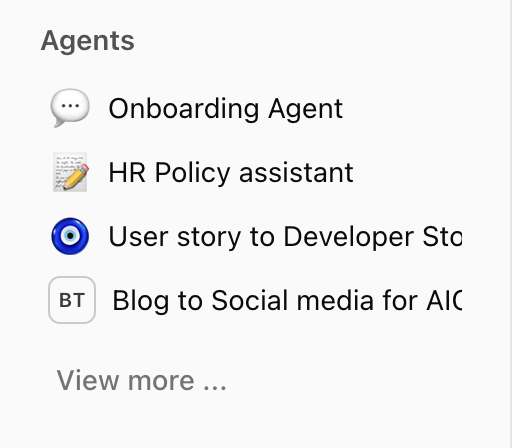
1. Go to the ****“agents”**** section from the left sidebar
2. You’ll see a list of agents:
* **Created by you**
* **Shared with you**
3. Click **“View more”** if the list is long and you want to browse all available agents
 ***
## Start Chatting
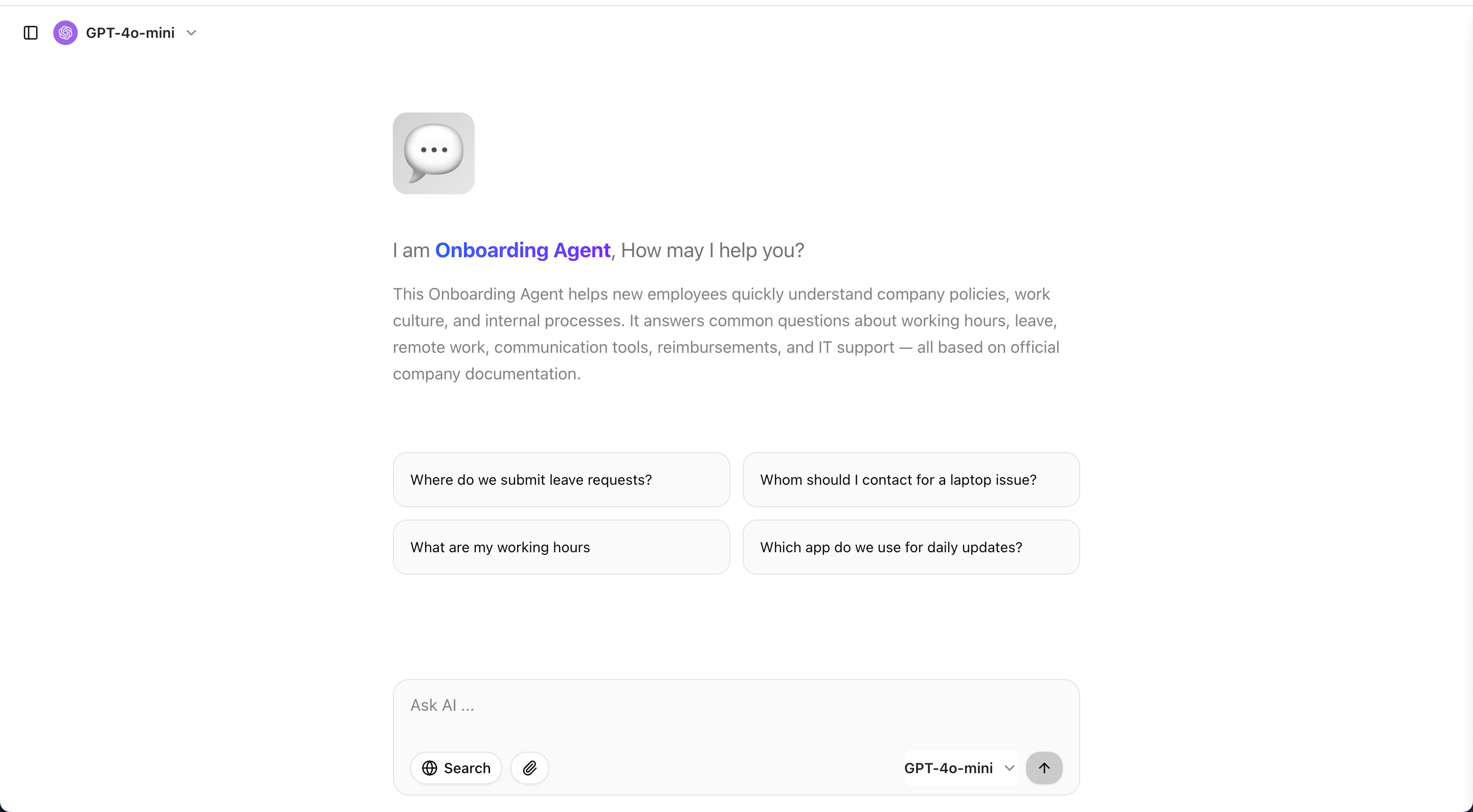
1. Click on the agent you want to use
2. A chat window will open, preloaded with the agent’s configuration
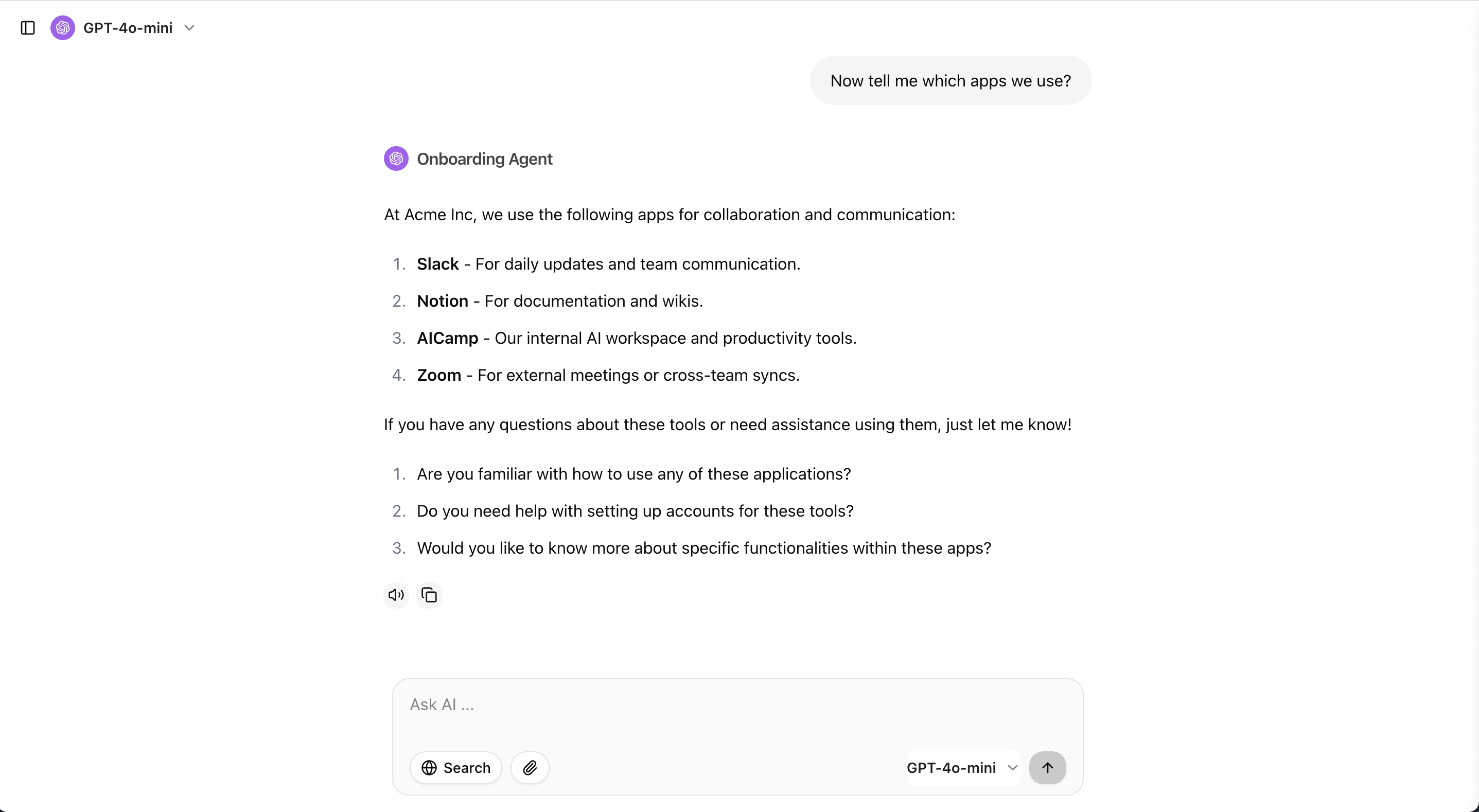
3. Type your message and start the conversation
The agent will respond based on its setup — using its persona, instructions, and any files or knowledge added by the creator.
***
## Start Chatting
1. Click on the agent you want to use
2. A chat window will open, preloaded with the agent’s configuration
3. Type your message and start the conversation
The agent will respond based on its setup — using its persona, instructions, and any files or knowledge added by the creator.
 ## Company-Wide AI Agent Library
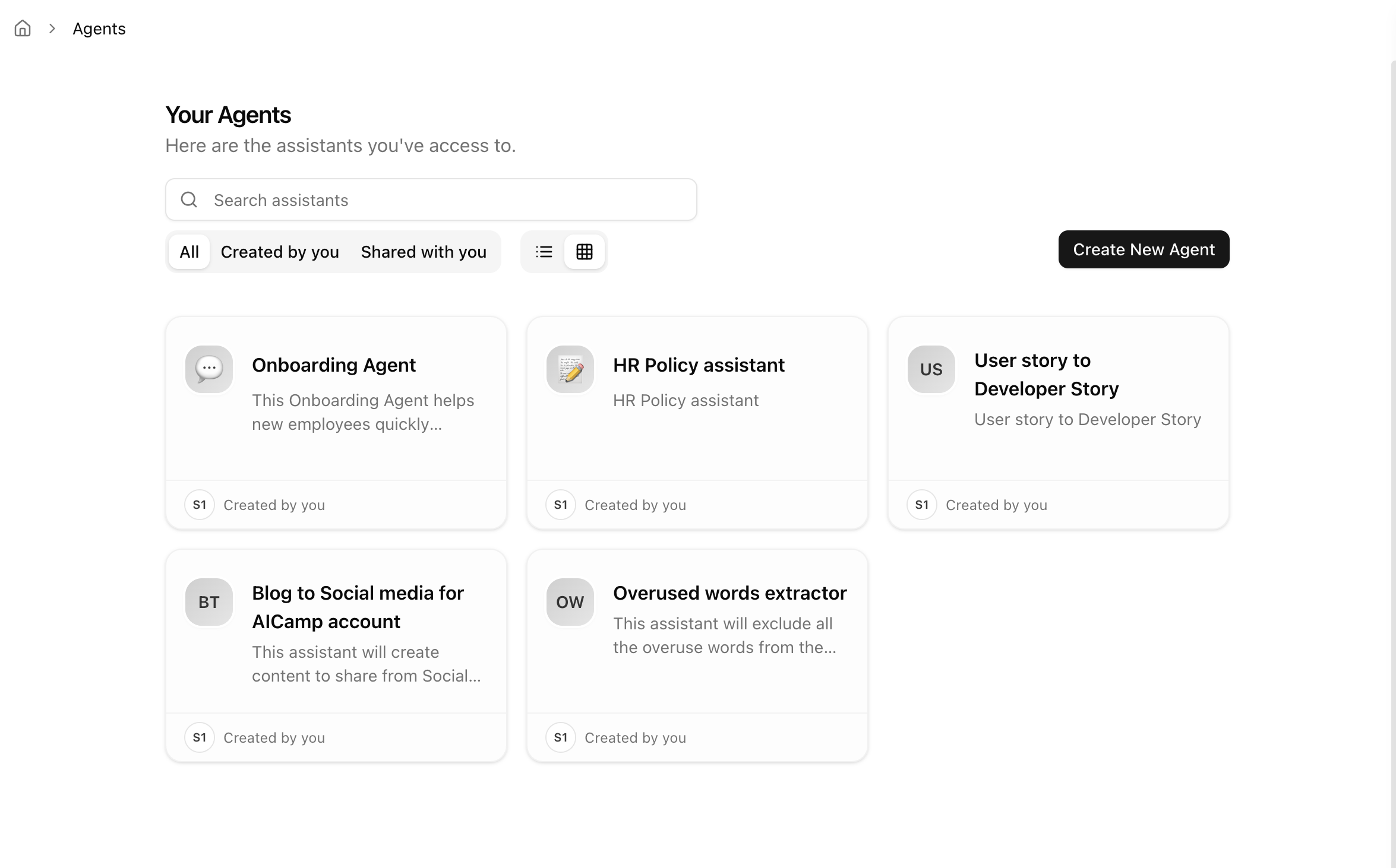
If your workspace has deployed agents for everyone:
* You’ll see them listed under the ****Company agentLibrary****
* These agents are visible to everyone with **View access**
* Use the filters to find agents:
* **Created by you**
* **Shared with you**
* \*\*All \*\*agents (all agent)
## Company-Wide AI Agent Library
If your workspace has deployed agents for everyone:
* You’ll see them listed under the ****Company agentLibrary****
* These agents are visible to everyone with **View access**
* Use the filters to find agents:
* **Created by you**
* **Shared with you**
* \*\*All \*\*agents (all agent)
 ## Tips for Better Interaction
* Start with the suggested conversation (if configured by the creator)
* You can continue the chat naturally, just like in a regular AI thread
* Use follow-up prompts to refine or redirect the agent's response
* For agents using documents, reference sections or ask direct questions like:
> “Summarize section 2 of the PDF.”\
> “What are the key risks mentioned in the uploaded policy?”
***
## What’s Next?
* [AI ](/agent/ai-agents-overview)Agent overview
* [Create your first AI ](/agent/create-ai-agent)Agent
* [Share and deploy](/agent/share-and-deploy-ai-agent) agents to your team
## Tips for Better Interaction
* Start with the suggested conversation (if configured by the creator)
* You can continue the chat naturally, just like in a regular AI thread
* Use follow-up prompts to refine or redirect the agent's response
* For agents using documents, reference sections or ask direct questions like:
> “Summarize section 2 of the PDF.”\
> “What are the key risks mentioned in the uploaded policy?”
***
## What’s Next?
* [AI ](/agent/ai-agents-overview)Agent overview
* [Create your first AI ](/agent/create-ai-agent)Agent
* [Share and deploy](/agent/share-and-deploy-ai-agent) agents to your team