> ## Documentation Index
> Fetch the complete documentation index at: https://docs.aicamp.so/llms.txt
> Use this file to discover all available pages before exploring further.
# Bring Your Own Model (BYOM) | AICamp
> Enable BYOM in AICamp to leverage your existing model subscriptions. Connect APIs, assign access, and retain governance while using your models.
AICamp lets you connect your own API keys from OpenAI, Anthropic, or Google to give your organization full control over which models are available and how they’re billed.
This is ideal for teams that already have model subscriptions or need tighter control over access, usage, and cost.
***
## What Is BYOM?
**BYOM** stands for *Bring Your Own Model*. It allows workspace admins to connect model providers directly via API key and manage access for individuals, groups, or the entire organization.
You can connect:
* OpenAI
* Anthropic
* Google
* Others supported: xAI, Amazon Bedrock, OpenRouter, Groq, DeepSeek
***
## Why Use BYOM?
* Use your company’s **existing model subscriptions**
* Assign model access at the **user, group, or workspace** level
* Maintain **central control** without exposing API keys
* Combine with **Managed Models** if needed
***
## How to Connect Your Own Model
1. Go to **Settings → Models**
2. Under **Connect AI Provider**, click **Connect** next to the provider (e.g. OpenAI, Anthropic)
3. Paste your **API key**
4. Click **Connect**
 Once connected, the models from that provider will appear below and can be enabled individually.-
***
## Access Control
You can control who has access to each model:
* **All workspace members**
* Specific **Groups** (e.g. Engineering, Legal)
* Individual **Users**
Once connected, the models from that provider will appear below and can be enabled individually.-
***
## Access Control
You can control who has access to each model:
* **All workspace members**
* Specific **Groups** (e.g. Engineering, Legal)
* Individual **Users**
 To update access:
1. Click the **access setting** on any connected model
2. Use the search box to find people or groups
3. Assign **Can View** or remove access
You can combine multiple rules — for example:
> Claude 3.5 → Available to all workspace members + Marketing team + Nishchit D
To update access:
1. Click the **access setting** on any connected model
2. Use the search box to find people or groups
3. Assign **Can View** or remove access
You can combine multiple rules — for example:
> Claude 3.5 → Available to all workspace members + Marketing team + Nishchit D
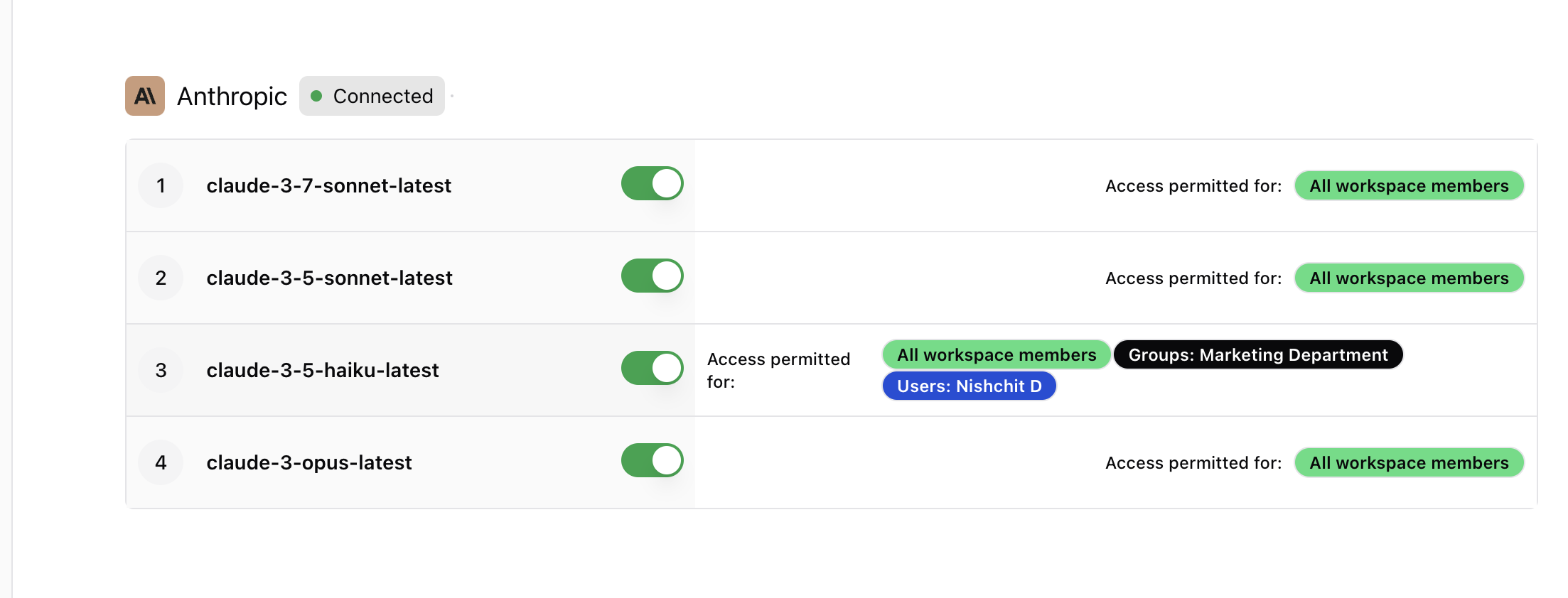 We keep adding all the latest available model from AI providers.
## Tips
* Assign high-cost models (like GPT-4.5 or Claude Opus) only to necessary teams
* Use groups (like “Finance” or “R\&D”) to simplify access control
* Combine with Managed Models if you want to isolate heavy workloads to BYOM only
## What’s Next?
* [Model Access Overview](/admin/model/model-overview)
* [Managed Models](/admin/model/managed-models)
* [Monitor Model Usage](/admin/usage-analytics)
We keep adding all the latest available model from AI providers.
## Tips
* Assign high-cost models (like GPT-4.5 or Claude Opus) only to necessary teams
* Use groups (like “Finance” or “R\&D”) to simplify access control
* Combine with Managed Models if you want to isolate heavy workloads to BYOM only
## What’s Next?
* [Model Access Overview](/admin/model/model-overview)
* [Managed Models](/admin/model/managed-models)
* [Monitor Model Usage](/admin/usage-analytics)