> ## Documentation Index
> Fetch the complete documentation index at: https://docs.aicamp.so/llms.txt
> Use this file to discover all available pages before exploring further.
# Manage Your Team | AICamp
> Easily onboard or remove team members, assign roles, and configure access rights across your AICamp workspace for smooth collaboration.
Admins can manage who has access to your AICamp workspace by inviting, removing, or updating members. Each member is assigned a role and can be part of one or more groups.
***
 ## Invite a Member
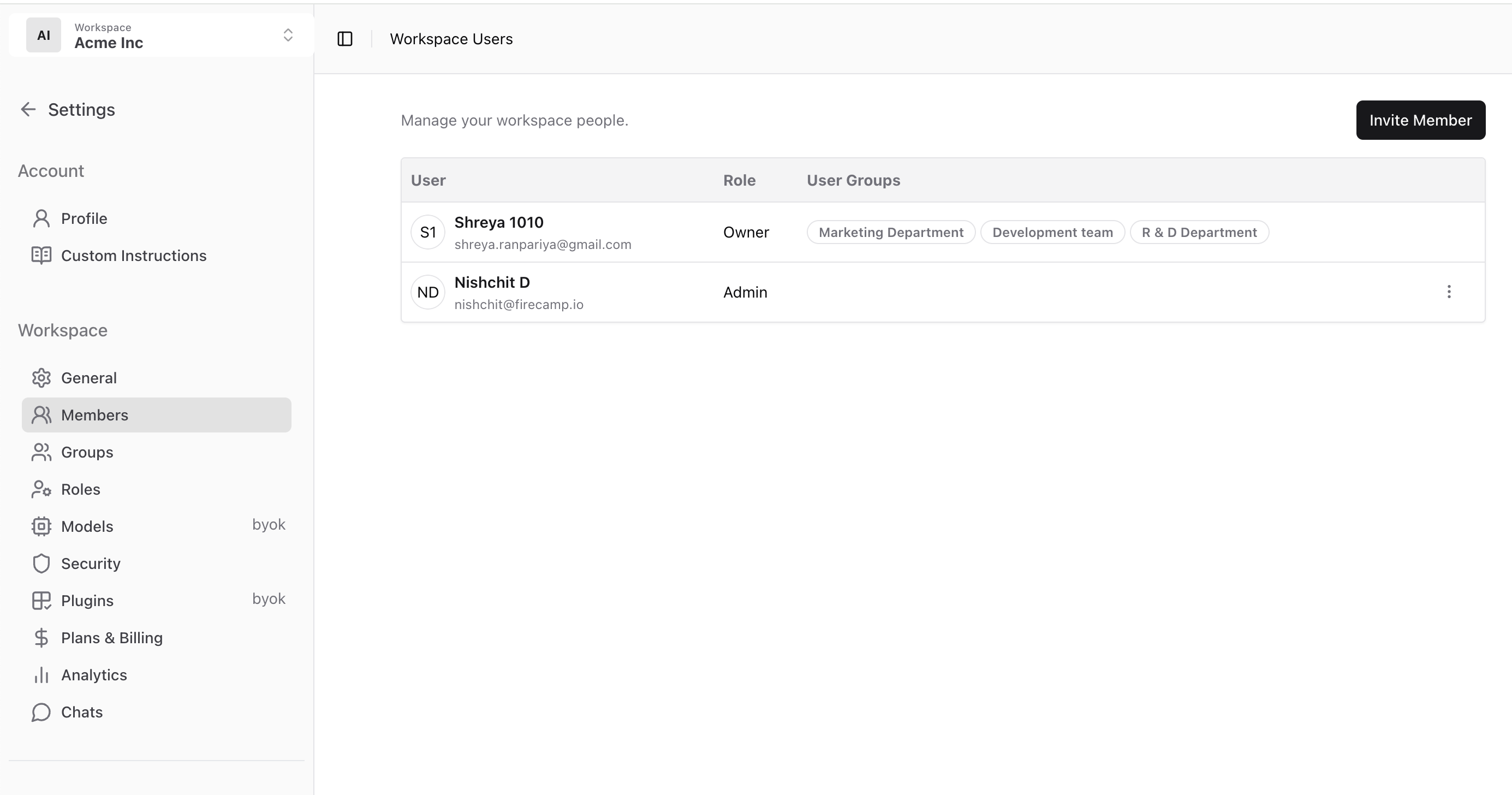
1. Go to **Settings → Members**
2. Click **Invite Member**
3. Enter the user’s email address
4. Assign a **role** (e.g. Admin, Member, Viewer)
5. Click **Send Invite**
The invited user will receive an email to join your workspace.
***
## View and Manage Members
The member list shows:
* **User name and email**
* Their assigned **role**
* The **groups** they belong to
You can remove member by clicking the **menu (⋮)** next to their name.
***
## Roles
Each member has a role that defines what they can access:
* **Owner** – Full access to all settings and billing
* **Admin** – Can manage members, groups, and settings
* **Member** – Can use AI features but can’t manage workspace settings
> Learn more: [Roles and Permissions in AICamp](/admin/roles-and-permissions)
***
## Tips
* Assign users to groups for prompt/agent sharing and model control
* Use roles to limit admin access to only those who need it
* Keep your member list up to date as teams grow
***
## What’s Next?
* [Set Up Groups for Your Teams](/admin/manage-groups)
* [Assign Roles and Permissions](/admin/roles-and-permissions)
* [Track Usage with Analytics](/admin/usage-analytics)
## Invite a Member
1. Go to **Settings → Members**
2. Click **Invite Member**
3. Enter the user’s email address
4. Assign a **role** (e.g. Admin, Member, Viewer)
5. Click **Send Invite**
The invited user will receive an email to join your workspace.
***
## View and Manage Members
The member list shows:
* **User name and email**
* Their assigned **role**
* The **groups** they belong to
You can remove member by clicking the **menu (⋮)** next to their name.
***
## Roles
Each member has a role that defines what they can access:
* **Owner** – Full access to all settings and billing
* **Admin** – Can manage members, groups, and settings
* **Member** – Can use AI features but can’t manage workspace settings
> Learn more: [Roles and Permissions in AICamp](/admin/roles-and-permissions)
***
## Tips
* Assign users to groups for prompt/agent sharing and model control
* Use roles to limit admin access to only those who need it
* Keep your member list up to date as teams grow
***
## What’s Next?
* [Set Up Groups for Your Teams](/admin/manage-groups)
* [Assign Roles and Permissions](/admin/roles-and-permissions)
* [Track Usage with Analytics](/admin/usage-analytics)